ShareToCal User Guide
What ShareToCal Does
You come across something you want to revisit later — a product to buy, a recipe to try, an article to read, a YouTube video or social media post, a travel destination, a form you need to fill in — almost anything shareable — and you share it into ShareToCal instead of losing it in a group chat, a browser tab you'll never reopen, or a "saved" folder you'll never look at again. ShareToCal turns that share into either:
- A scheduled reminder — pick a date and time, and ShareToCal pushes a notification straight to your phone when it's due, with a preview of what you shared so you instantly remember why it mattered.
- A bookmark — no reminder, just a tidy, searchable place to keep it until you're ready.
Everything lives in one list, organised by status, with notes and tags to keep things findable as it grows. It works the same way on iPhone and Android, straight from the native share sheet you already use — no copying links, no separate app to open first.
Getting Started
1. Download the app
ShareToCal isn't listed publicly yet — download it using the link you've been given, then follow the prompts on your device to install it.
2. Create your account
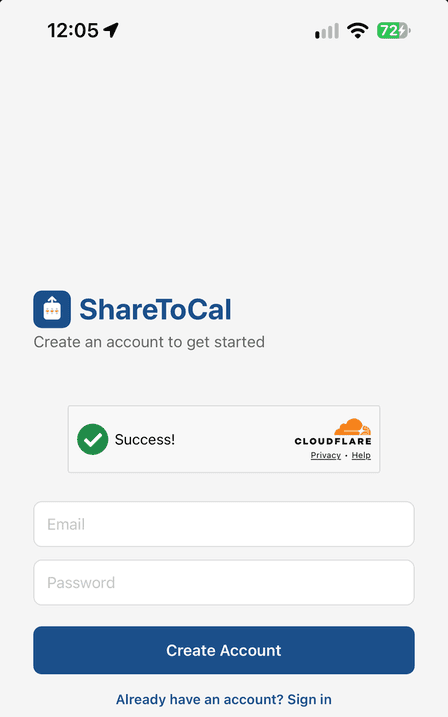
Open the app and choose Sign Up. You'll need:
- A valid email address
- A password
There's no guest mode — an account is required before you can save anything, since your items are backed up securely to your account rather than stored only on your device.
3. Confirm your account
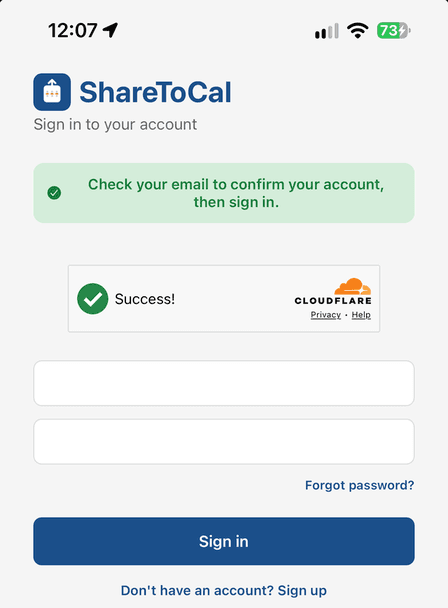
After tapping Create Account, ShareToCal takes you straight to the Sign In screen with a reminder to check your email first.
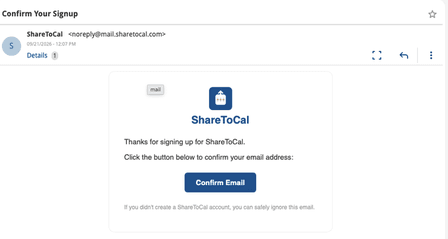
Open the confirmation email from ShareToCal (check your spam folder if it doesn't arrive within a minute or two) and tap Confirm Email.
Once confirmed, return to the app, enter your password, and tap Sign In.
4. Forgotten password?
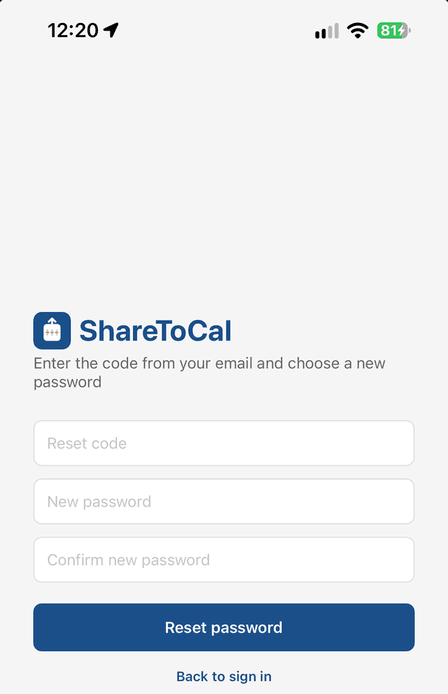
On the sign-in screen, tap Forgot password?. ShareToCal emails you a 6-digit code. Back in the app, enter the code and your new password, then tap Reset password. The code expires after an hour.
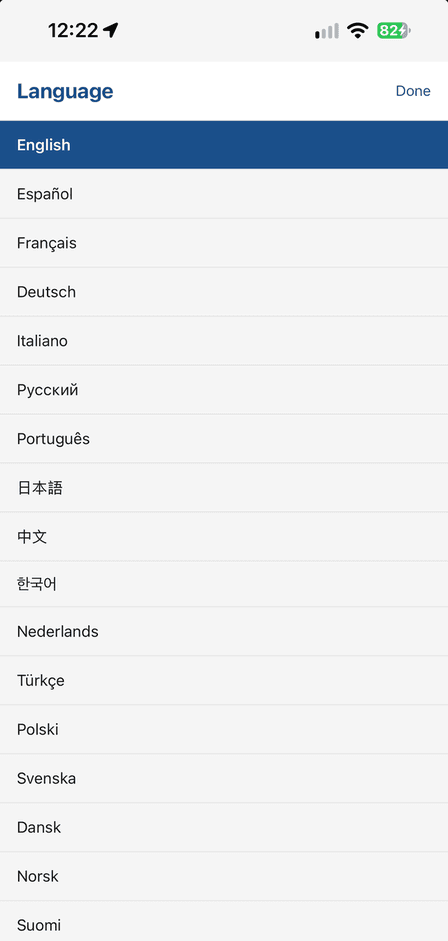
5. Choose your language
ShareToCal is available in 25 languages. It follows your device's language by default; you can change it independently in Settings at any time — see Settings.
Your First Share
1. Share into ShareToCal
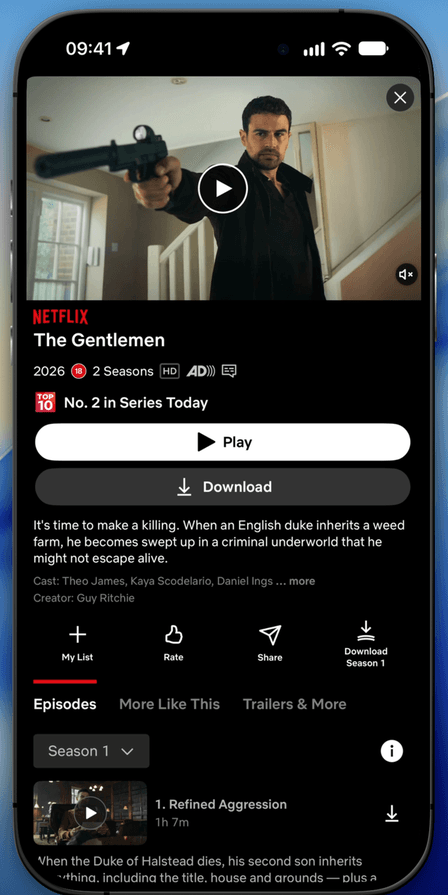
From nearly any app tap the usual Share button and choose ShareToCal from the share sheet. This works for links, photos, videos, and most files.
Not sure what you're looking for? The Share icon varies by app, but it's usually one of these:
- iOS system icon — a square with an arrow breaking out the top (used in Safari, Photos, Files, and most system-level share sheets)
- Android Material icon — three dots connected by two lines, in most native Android apps
- Curved arrow — common as an in-app trigger on both platforms, e.g. YouTube's own "Share" row before the system share sheet opens
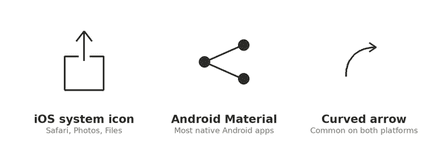
Whichever shape it is, it's almost always labelled Share.
ShareToCal usually appears in the first row of icons, but on some apps it may be tucked under More or More Options instead — look there if you don't see it straight away.
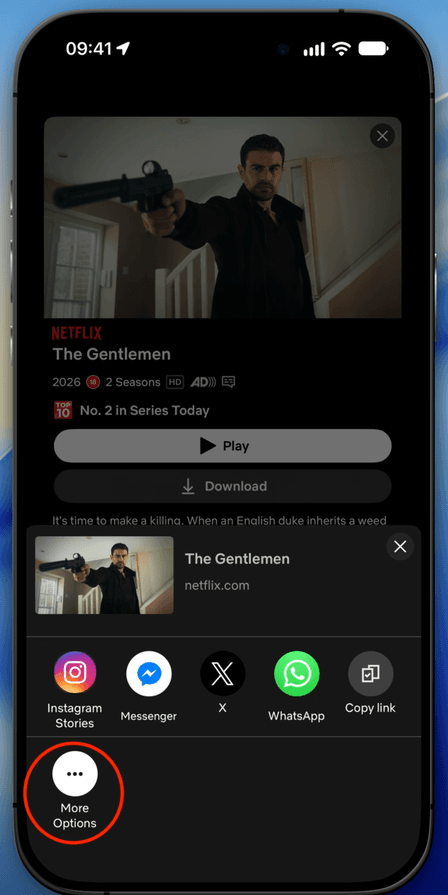
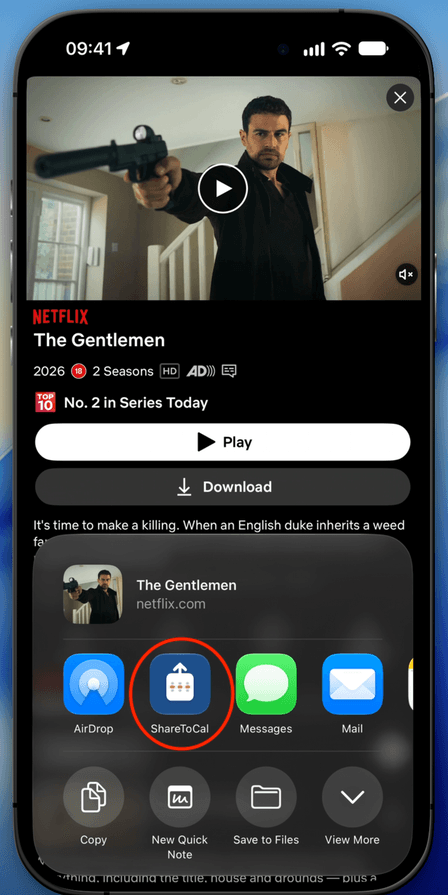
Your phone also learns from how you use it: the more often you tap ShareToCal, the higher up the list it tends to move over time. On iOS you can speed this up yourself — tap More, then Edit, to drag ShareToCal into your preferred position.
2. Choose Schedule or Bookmark
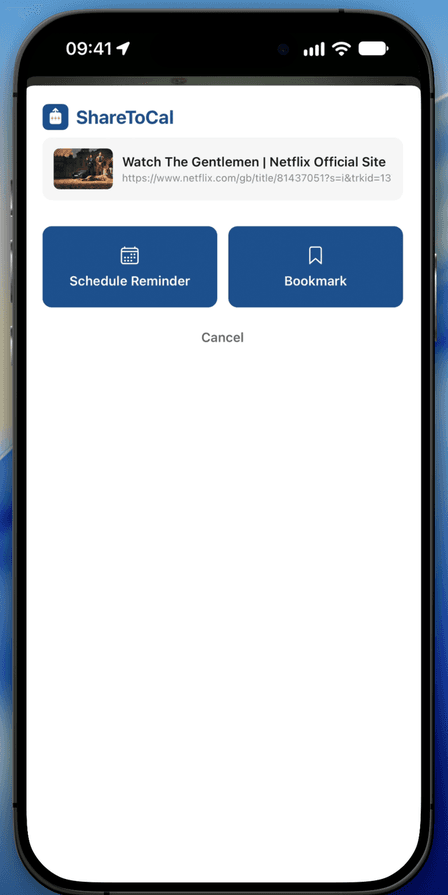
ShareToCal opens straight into a small screen with two options:
- Schedule reminder — pick a date and time; you'll get a push notification then, with a preview of what you shared.
- Bookmark — save it with no reminder, for whenever you get round to it.
3. Pick a date and time
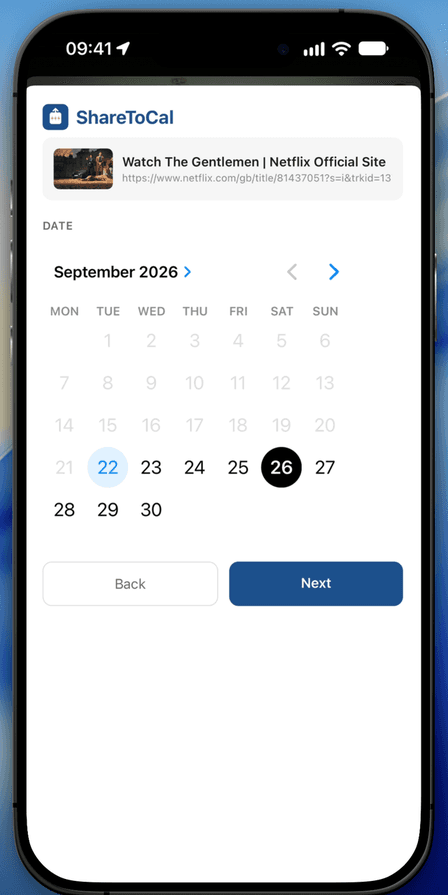
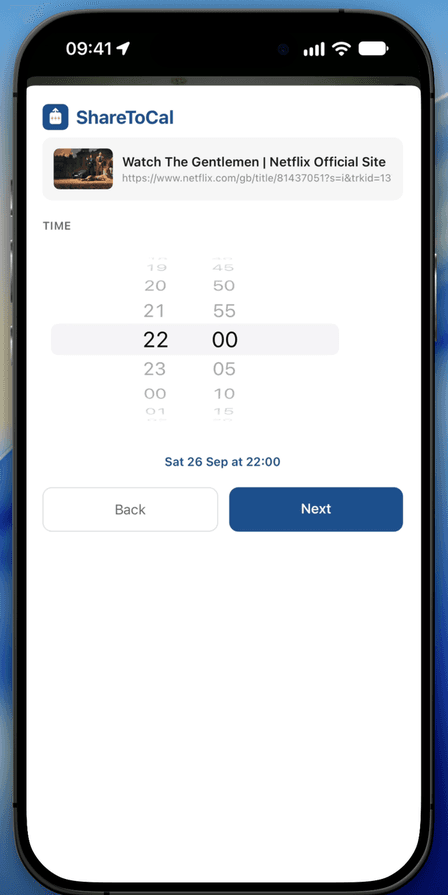
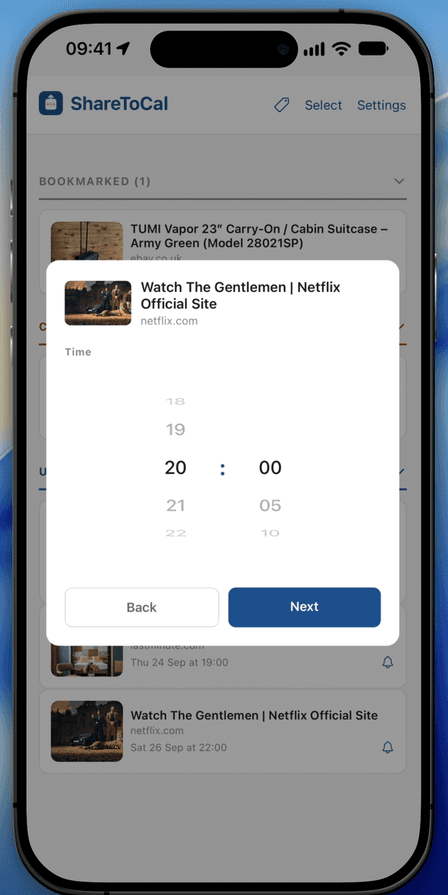
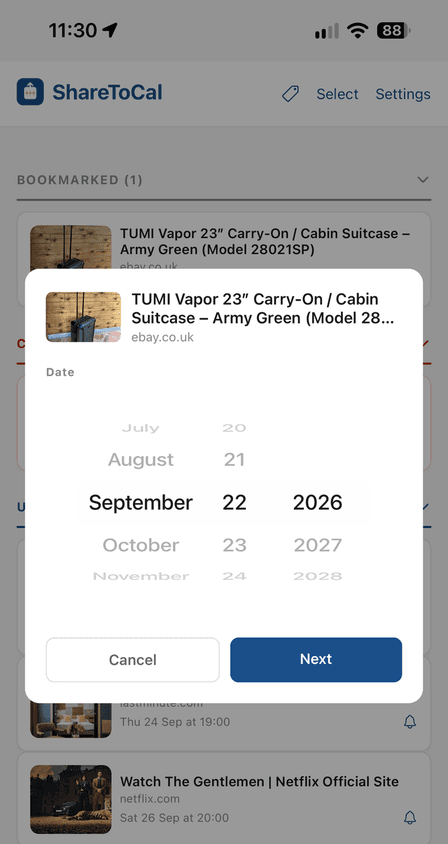
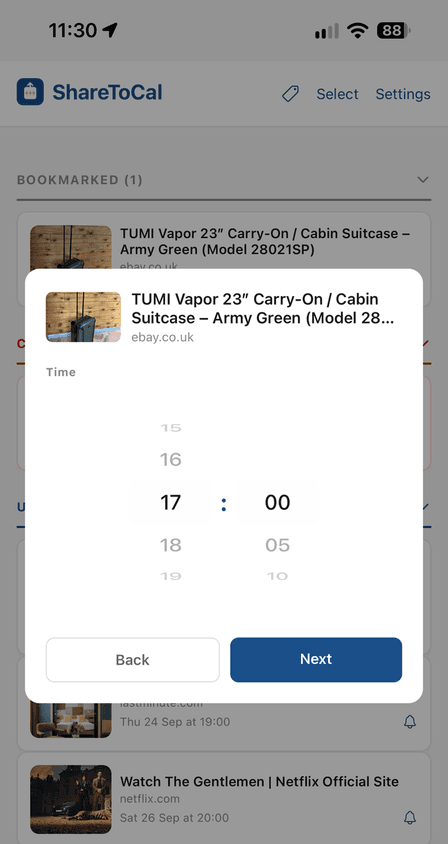
If you chose Schedule reminder, ShareToCal next asks for a date, then a time — pick both and tap Next on each screen.
4. Modify title, add a note or tag (all optional)
ShareToCal automatically pulls a title and preview image from most links. You can edit the title if it's not quite right, add a short note to remind yourself why you saved it, and add up to 3 tags — see Organising Your Items for more on tags.
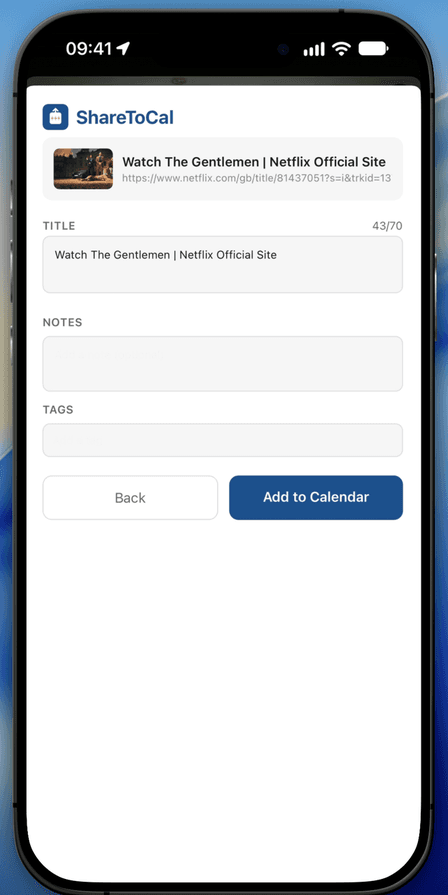
5. Confirm
Tap Save (for a scheduled reminder) or Bookmark. You'll see a brief confirmation, and the item now appears in your list.
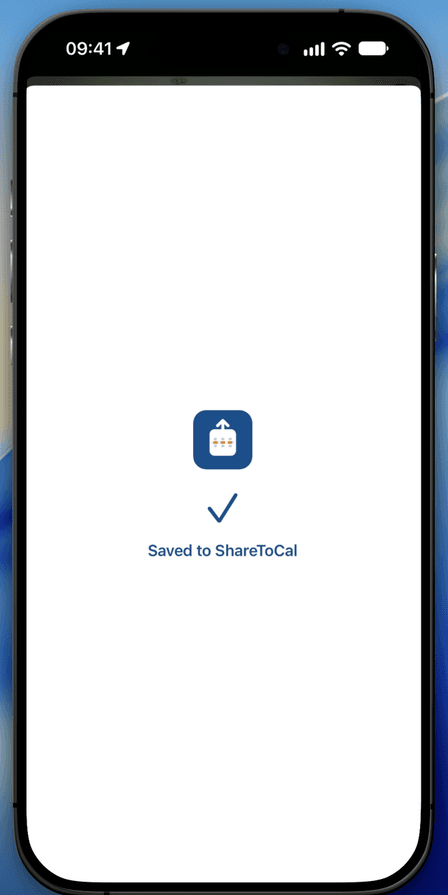
Tip: if a notification doesn't arrive when a reminder is due, check that your phone's Focus mode isn't silently blocking it — see Troubleshooting.
Managing Your Items
Your three lists
Everything you save sits in one of three sections:
| Section | What's in it |
|---|---|
| Upcoming | Scheduled reminders that haven't come due yet |
| Catch Up | Scheduled reminders whose time has passed and you haven't dealt with yet |
| Bookmarked | Items saved with no reminder |
Editing an item
You don't have to come back through a share sheet to find your list — ShareToCal is a normal app too, so you can just tap its icon on your home screen any time.
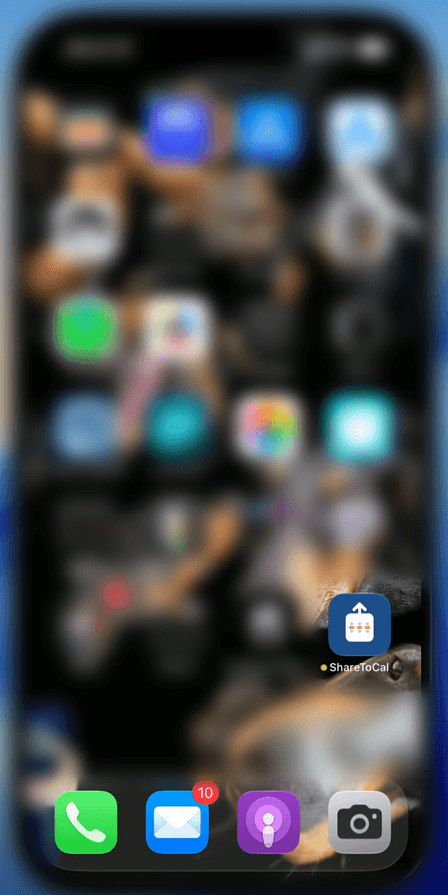
That opens straight into your list — Bookmarked, Catch Up, and Upcoming.
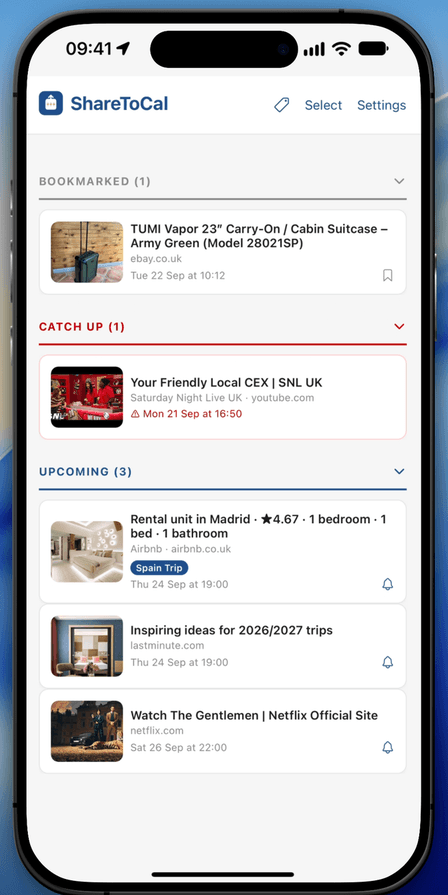
Swipe an item to the left to reveal Edit and Share. Tap Edit.
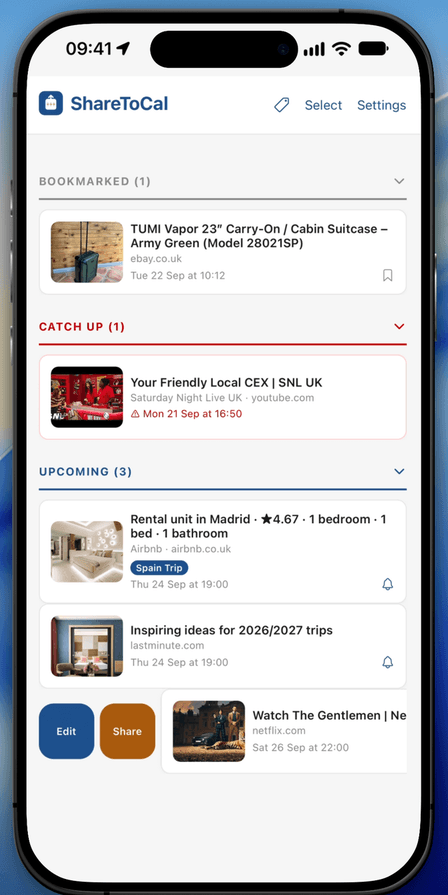
From here you can change the title, note, or tags, and — for a scheduled item — the date and time. Scroll to pick a new time and tap Next to confirm.
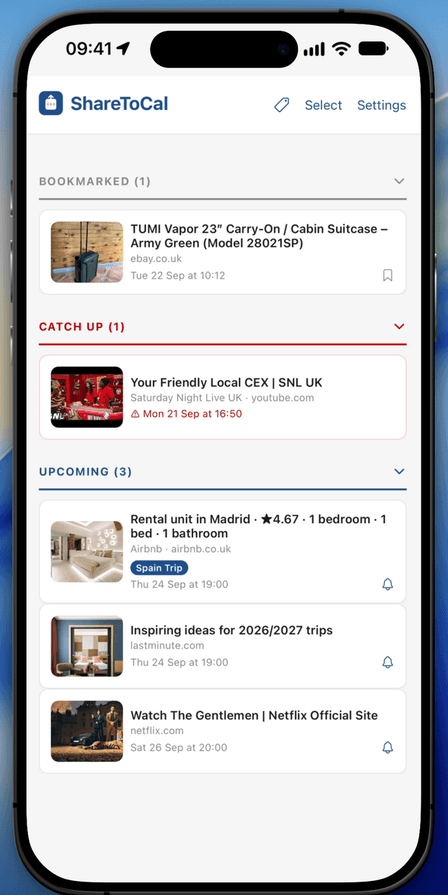
The item updates in your list straight away with its new details.
Turning a bookmark into a reminder (and back)
Swipe a bookmarked item left to reveal Edit and Share, then tap Edit.
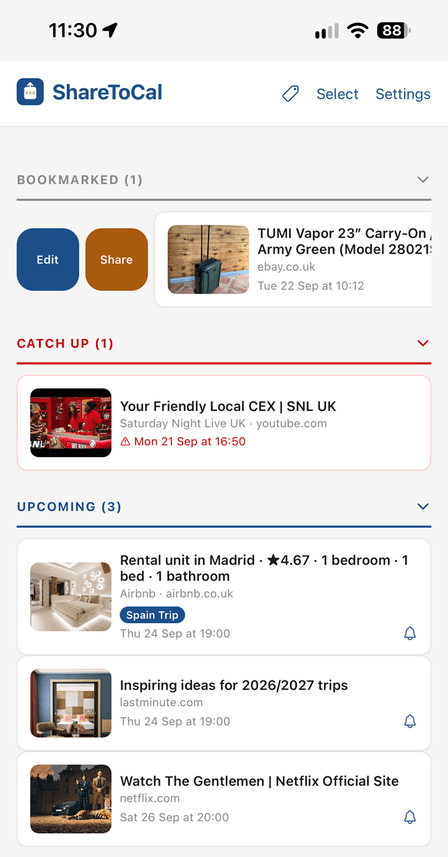
On the edit screen, tap Schedule instead.
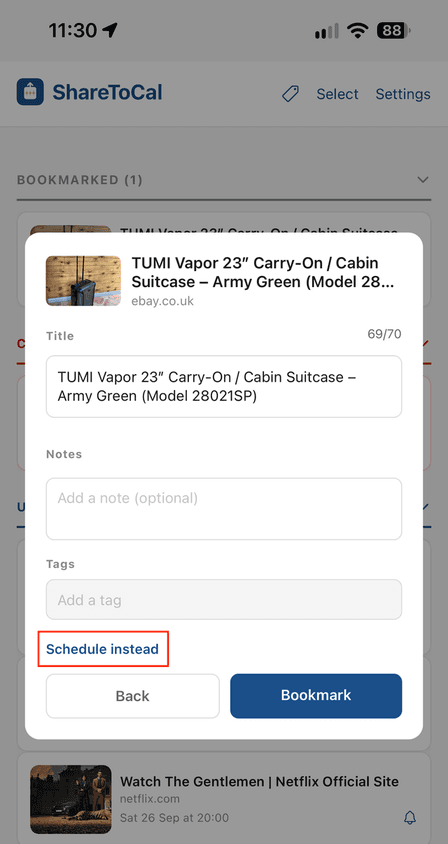
Pick a date, then a time, same as scheduling a new item.
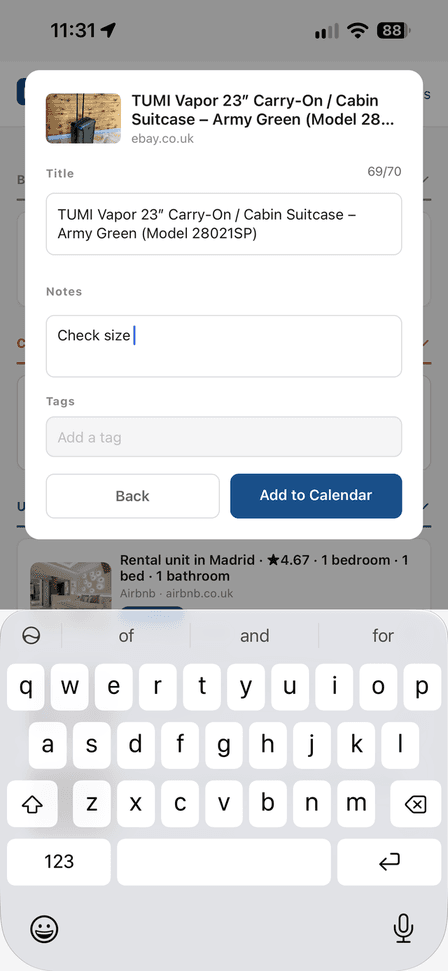
You're back on the edit screen — now with an Add to Calendar button instead of Bookmark. Add a note here if you want one, then tap it to confirm.
The item moves into your Upcoming list with its new date, time, and note.
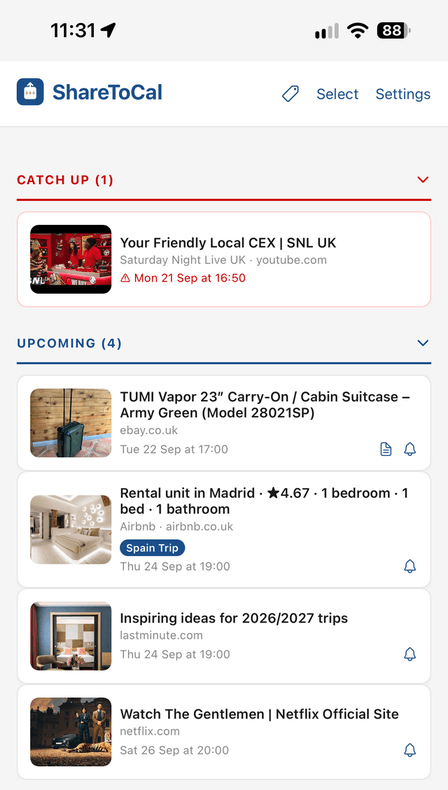
The reverse works too: open a scheduled item and choose to bookmark it instead if you decide you don't need a specific reminder after all.
Viewing attached photos, videos, and files
If what you shared included a photo, video, or file, tap it to open ShareToCal's built-in viewer — images open full-screen with pinch-to-zoom, and documents open in a clean in-app view with no address bar or browser chrome.
Deleting an item
Swipe an item left to reveal Delete.
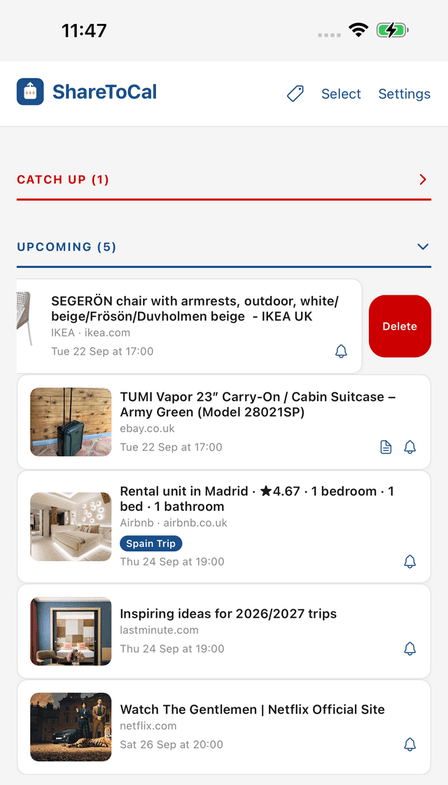
Tap it, and ShareToCal asks you to confirm before anything is actually removed.
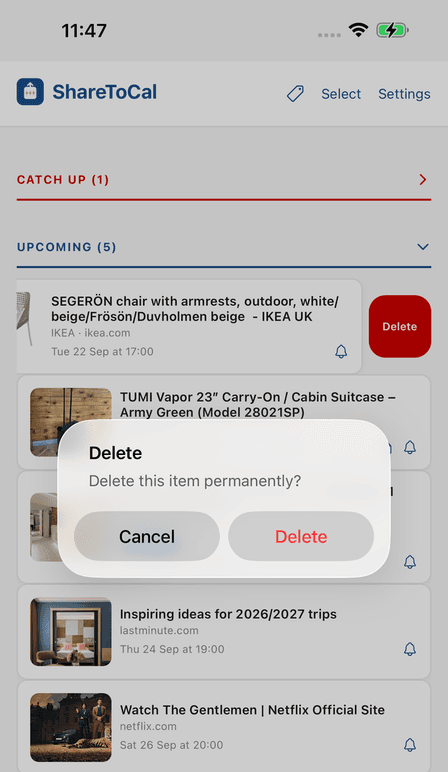
This is permanent — deleted items (and any attached file) can't be recovered, so double-check before confirming.
Bulk actions
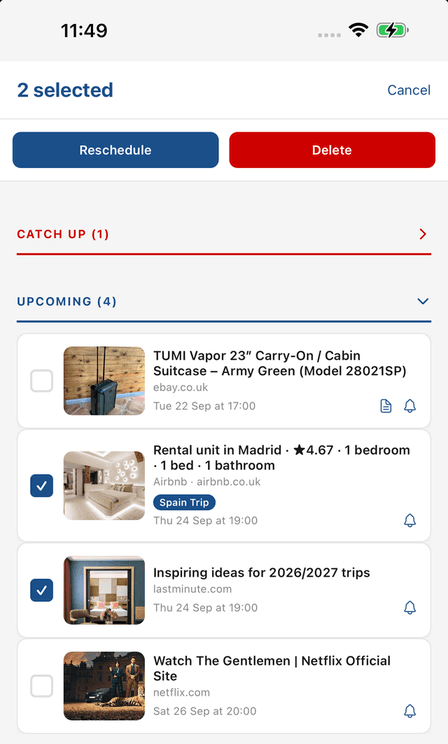
Tap Select at the top of the list, then tap items to choose several at once. Two actions appear: Reschedule to move them all to a new date and time together, or Delete to remove them all in one go.
Organising Your Items
Notes
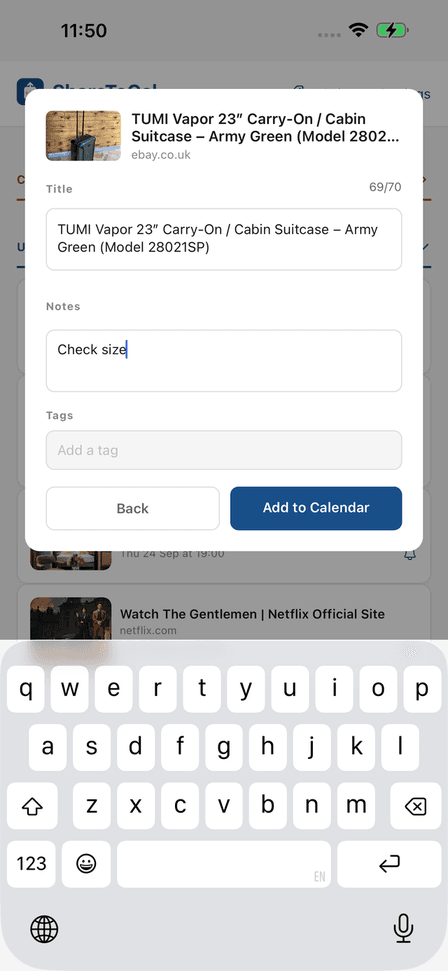
Add a short note to any item to remind yourself why you saved it — useful for a link that won't make sense out of context weeks later. On the item's edit screen, type into the Notes field.
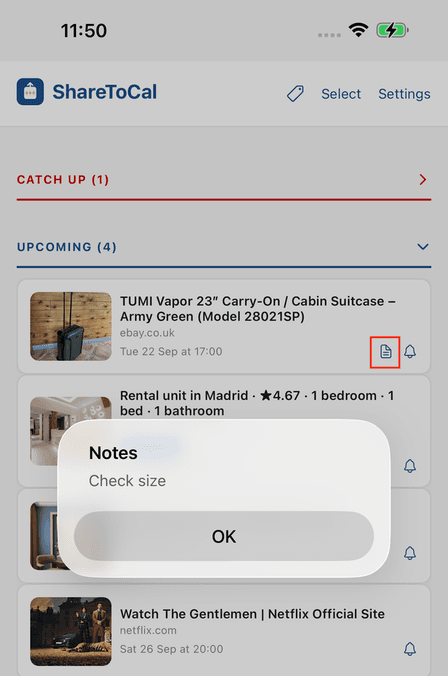
Back in your list, tap the note icon on that item's card to view the note again any time.
Tags
Tags are the main way to organise a growing list. A few things worth knowing:
- Each item can have up to 3 tags.
- Each tag is up to 15 characters, and entirely your own wording — there's no fixed list to pick from.
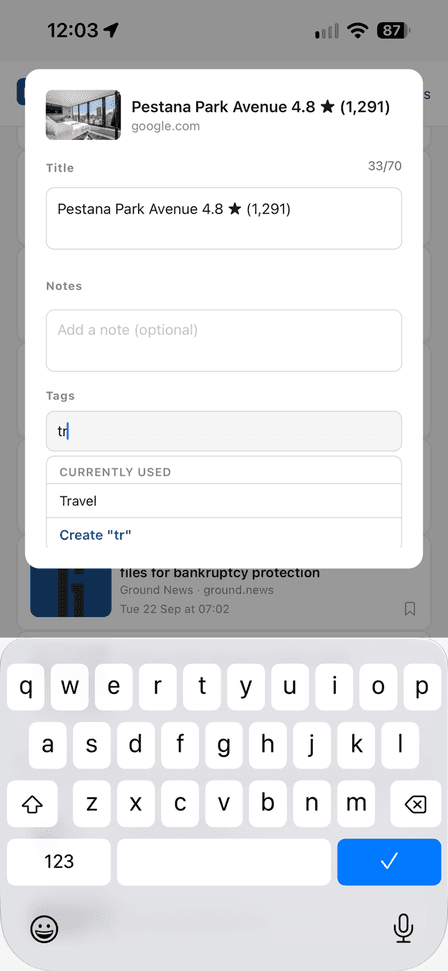
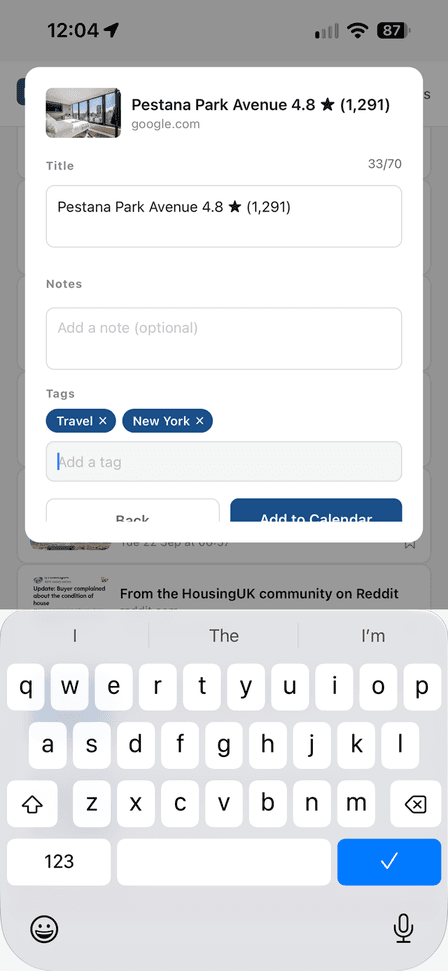
Start typing a tag and ShareToCal suggests ones you're already using — tap a suggestion to reuse it.
If nothing matches, tap Create "..." to add a brand new tag.
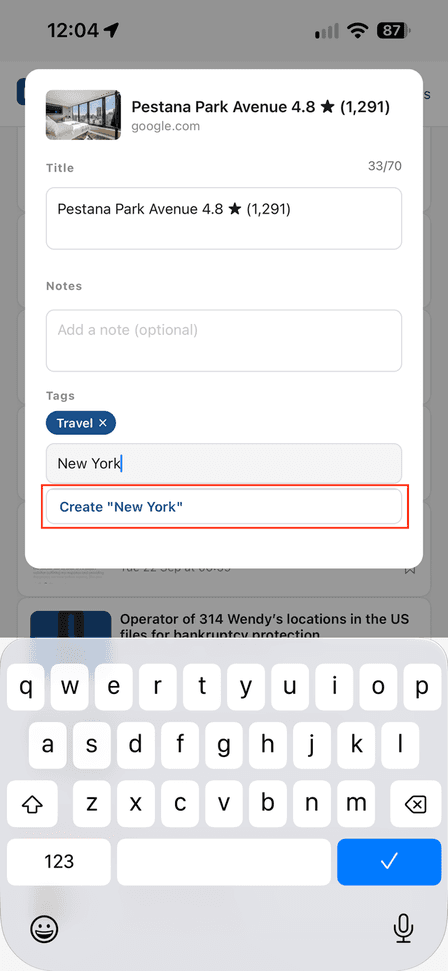
Both tags now sit on the item as pills, ready to filter by later.
Filtering by tag
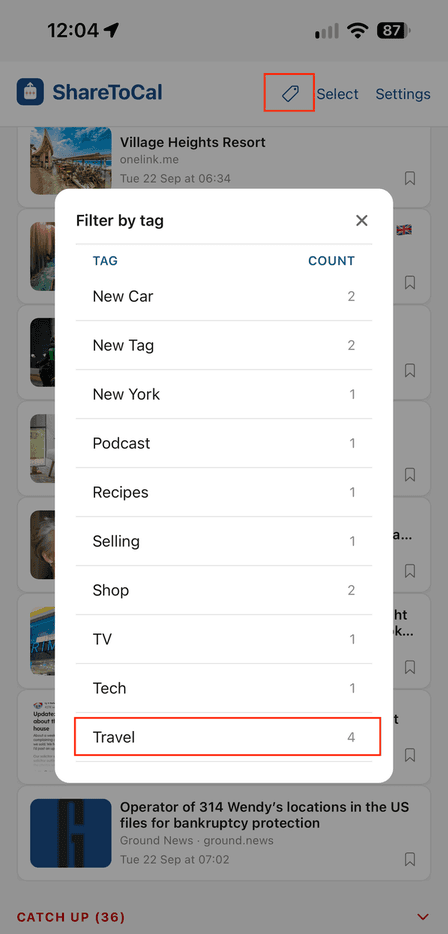
Tap the tag icon at the top of your list to open Filter by tag — every tag you've used is listed, with a count of how many items carry it.
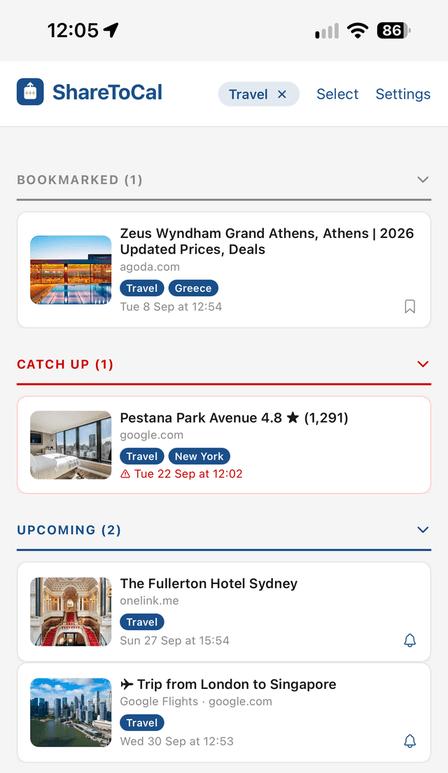
Tap a tag to filter your whole list down to just those items, across Bookmarked, Catch Up, and Upcoming alike. Tap the × on the pill at the top to clear the filter.
Settings
Language
ShareToCal supports 25 languages. It follows your device's language by default; to override it, go to Settings → Language and pick one explicitly. This is stored on your device, so it won't change if you sign in on another phone.
Notifications
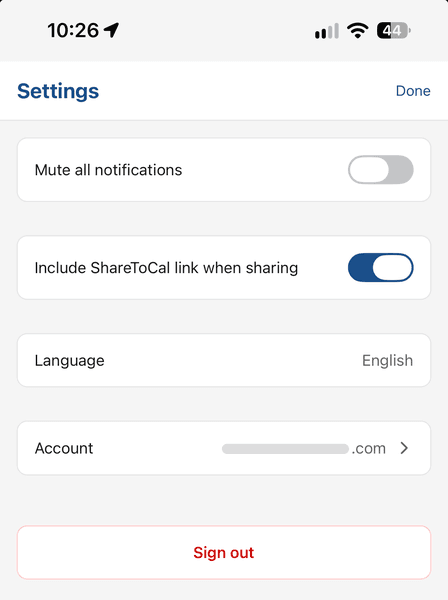
Toggle Mute all notifications in Settings to stop reminders temporarily without deleting anything. Your scheduled items stay exactly as they are and start notifying again once you switch it off.
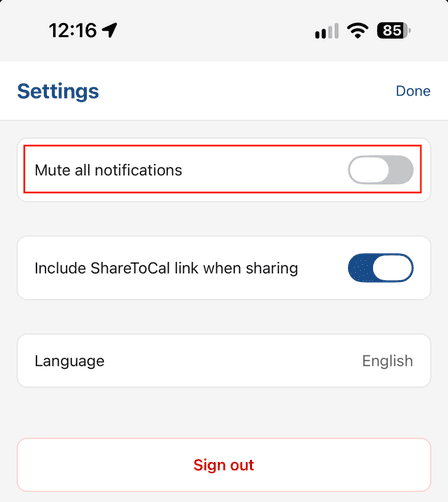
This is separate from your device's own notification settings. ShareToCal still follows whatever your phone allows — permissions, Focus modes, and so on — this toggle is an additional, app-specific mute on top of that, for muting ShareToCal alone without changing anything at the device level.
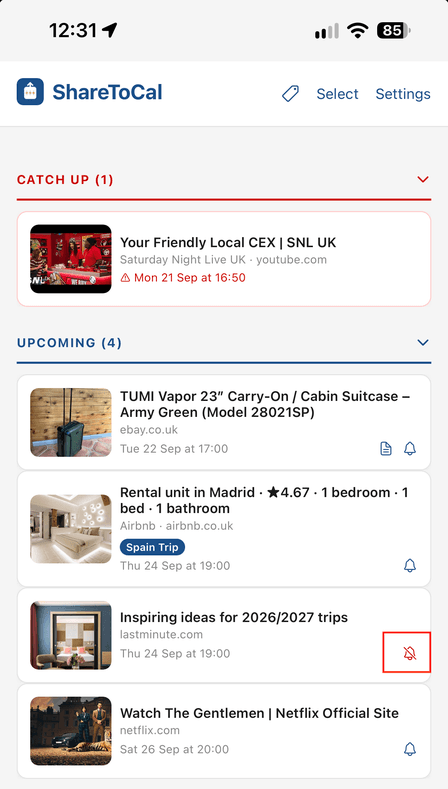
You can also mute a single item without touching this toggle. Tap the bell icon on any item's card in your list to mute just that one — useful for something you still want to keep around but don't need reminding about again.
Sharing preferences
Include ShareToCal link when sharing is on by default. When you share an item back out of ShareToCal (for example, sending it to a friend), this appends a ShareToCal link so they can see it too. Turn it off if you'd rather share just the original content.
Changing your email address
In Settings, tap Account, then Change email, and enter your new address. ShareToCal sends a 6-digit code to your current address and another to the new one. Enter both, then tap Confirm change. From then on, you sign in with the new address, and reminder emails go there too. We also email your old address to let you know about the change.
No code? Check your spam folder, then tap Send new codes. Only the codes from the newest emails will work. If you no longer have access to your current address, email support@sharetocal.com.
Changing your password
In Settings, tap Account, then Change password. Enter your current password, then your new one twice, and tap Change password. Passwords need at least 8 characters, and passwords that have appeared in known data breaches aren't allowed. Any other phones signed in to your account are signed out, and we email you to confirm the change.
If you've forgotten your current password, sign out and use Forgot password? on the sign-in screen instead.
Signing out
Tap Sign out at the bottom of Settings to log out of your account on this device. You'll need your email and password to sign back in.
Deleting your account
In Settings, tap Account, then Delete account. So it can't happen by accident, you type your account's email address, tap Delete account, then confirm once more. Your account and everything in it, including saved items, files and reminders, is deleted straight away. This can't be undone.
Free plan and subscription
ShareToCal is free to download and use up to a limit. Beyond that, a subscription unlocks unlimited use.
Troubleshooting
My reminder didn't notify me
The most common cause is an active Focus mode on your phone silently blocking the notification — it can still arrive at Apple's or Google's servers without ever showing on your screen. Check Settings → Focus (iOS) and make sure ShareToCal is allowed through any Focus mode you have active, or turn Focus off to confirm.
I had to log in again right after installing (Android)
On some Android phones, you may be asked to sign in again once, shortly after your first install and login. This is a known quirk of how certain Android devices store your session securely — it resolves itself automatically and won't happen again on that device.
A file says "not found" when I try to open it
This can happen if you wait too long between saving a file and opening it — try re-sharing the file into ShareToCal if it doesn't open.
FAQ
Do I need an account? Yes — every item you save requires you to be signed in, so your list is backed up and available if you switch devices.
Can I use ShareToCal without a reminder? Yes — choose Bookmark instead of Schedule when saving.
Is deleting an item permanent? Yes. There's no trash or undo, so double-check before you confirm a delete.
How many tags can an item have? Up to 3, each up to 15 characters.
Does it work the same on iPhone and Android? Yes, the core experience is identical on both — any small differences are called out where they matter in this guide.
What if I run out of my free plan's limit? A subscription unlocks unlimited use.
How do I get help? Check Troubleshooting above, or email support@sharetocal.com.